
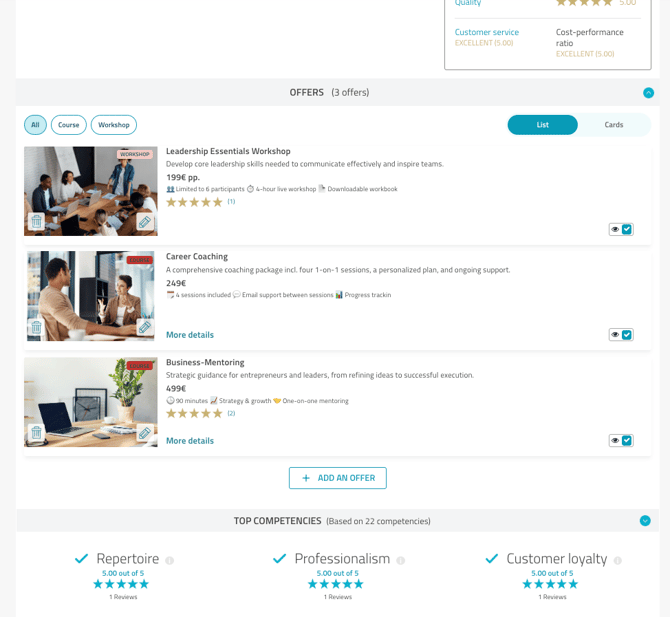
Offers is a ProvenExpert feature that lets you showcase your services or products directly on your profile — turning your ProvenExpert profile into your personal offers page. You can add:
- An image
- A description of your offer
- Pricing
- A direct link
All right next to your reviews.
What are the benefits of Offers?
The biggest benefit is simple: offers on your profile make it easier for people to buy from you or book with you.
Everything is finally in one place.
Instead of visitors bouncing from your website to a product page, then to your contact details, then hunting for reviews, they find it all together on your profile.
Your offers and your trust work perfectly together.
Until now, visitors could see why they should trust you. Now they can also see exactly what they can buy or book from you.
Customers can act immediately.
A direct link takes them straight to your booking page, product page, or contact option.
Your services become easier to understand — for people and search engines alike.
Clear offer descriptions help Google and AI systems connect your profile with the right searches.
Is Offers already included in my ProvenExpert plan?
Yes—starting from BASIC, Offers is already included in your plan, so you can get started right away.
- BASIC: up to 3 offers
- PLUS: up to 10 offers
- PREMIUM: unlimited offers
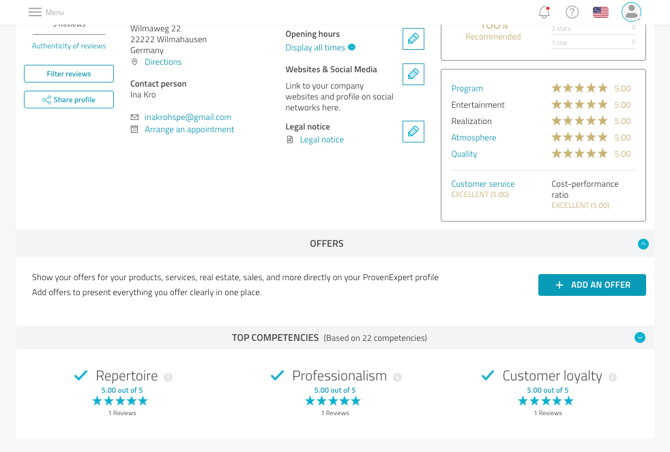
You’ll find Offers directly in your profile.
How do I add my offers to my profile?
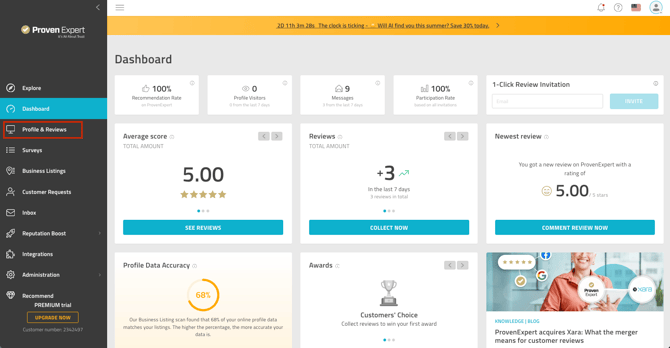
1. Go to your dashboard and select “Profile & Reviews” in the menu on the left.
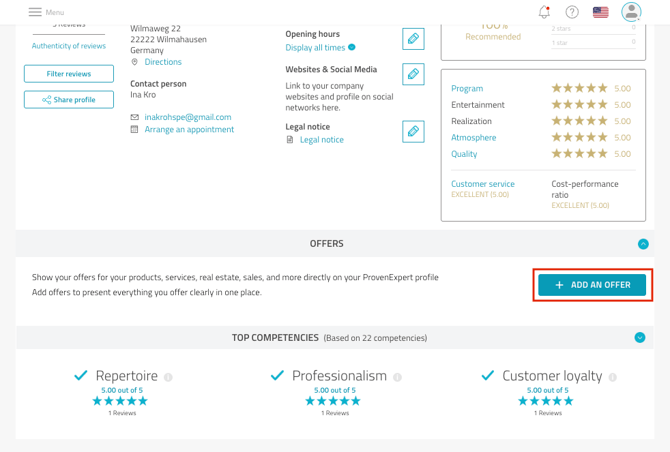
2. Click “+ Add offer” in the bottom right corner. This opens the pop-up window.
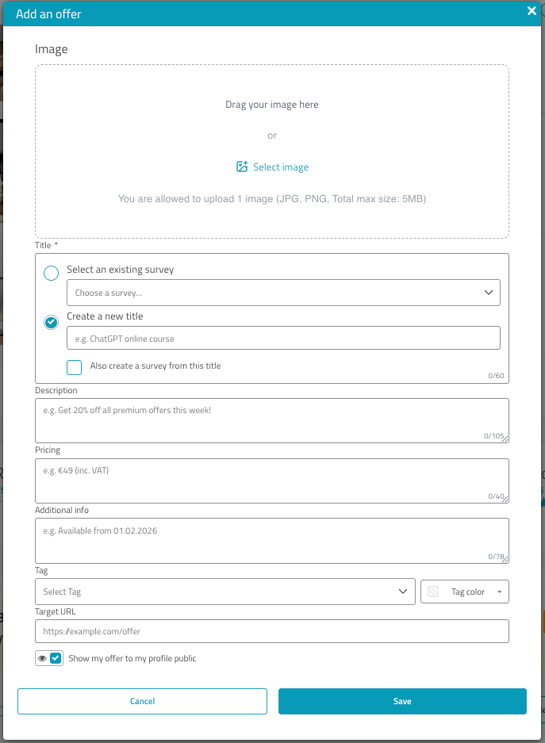
3. Upload an image of your product or offer at the top. The file must not be larger than 5 MB.
Under “Survey”, you can link your offer to the matching survey. For example, you can connect the seminar offer “Coaching 1” with the survey “Coaching 1” and show exactly the reviews that belong to it. Optionally, enter a title for your offer.
4. Fill in your offer details:
- Give your offer a title
- Describe your offer in a short and clear way
- Add the price or your fee
- Under "Additional information," add extra details if needed — for example, dates for special promotions or offers for certain customer groups
- Under "Tag," choose the right category for your offer — for example, coaching or real estate agent. You can also choose a matching background colour on the right
- Add your target URL — for example, a link to your website
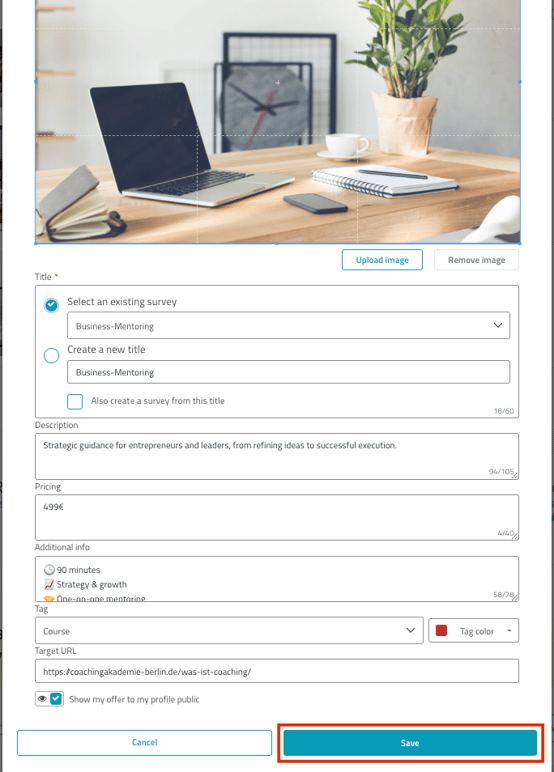
5. Check your details one more time and click “Save”.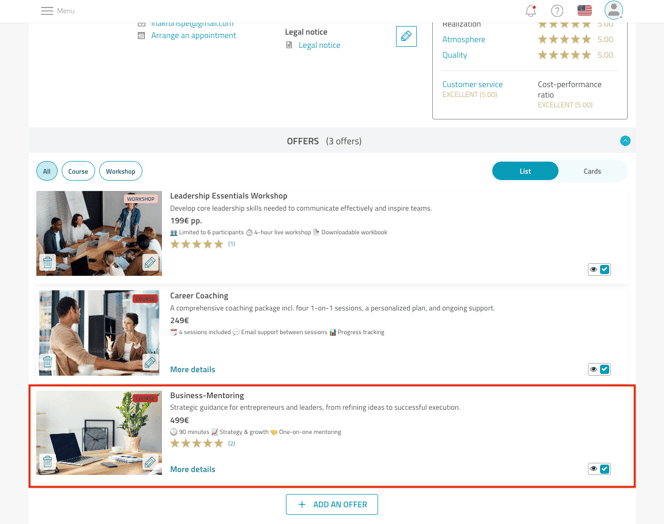
Your offer is now visible on your profile for all visitors.
How long will my offers be visible on my profile?
Your offers stay on your profile for as long as you want—you can update or replace them at any time.